
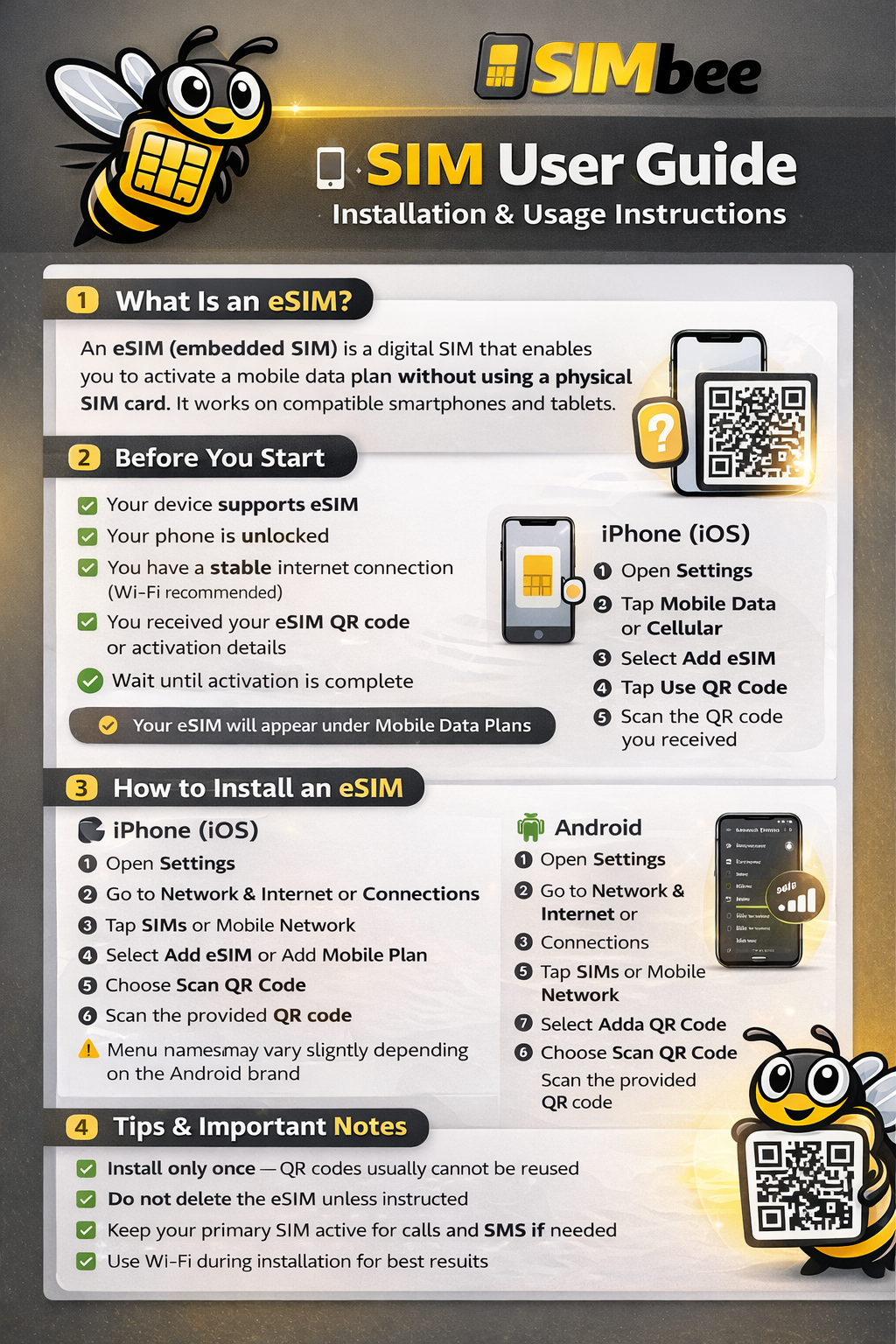
1. Before You Start
Please make sure that:
- Your device supports eSIM
- Your phone is unlocked
- You have a stable internet connection (Wi-Fi recommended)
- You received your eSIM QR code or activation details
2. How to Install an eSIM
???? Installation on iPhone (iOS)
- Open Settings
- Tap Mobile Data or Cellular
- Select Add eSIM
- Tap Use QR Code
- Scan the QR code you received
- Confirm installation when prompted
- Wait until activation is complete
✅ Your eSIM will appear under Mobile Data Plans
???? Installation on Android
- Open Settings
- Go to Network & Internet or Connections
- Tap SIMs or Mobile Network
- Select Add eSIM or Add Mobile Plan
- Choose Scan QR Code
- Scan the provided QR code
- Confirm and complete installation
⚠️ Menu names may vary slightly depending on the Android brand
3. How to Activate & Use Your eSIM
- Go to Mobile Data / Cellular Settings
- Turn ON the eSIM line
- Select the eSIM as your Mobile Data source
- Enable Data Roaming if required
- Restart your phone if the network does not connect immediately
???? Once connected, mobile data will work automatically.
4. Tips & Important Notes
- Install only once – QR codes usually cannot be reused
- Do not delete the eSIM unless instructed
- Keep your primary SIM active for calls and SMS if needed
- Use Wi-Fi during installation for best results
5. Troubleshooting
No signal or data not working?
- Restart your phone
- Check that the eSIM is enabled
- Ensure mobile data is set to the eSIM
- Turn data roaming ON
- Try manual network selection
If problems continue, contact your eSIM provider.
6. Supported Devices (Examples)
- iPhone XS and newer
- Google Pixel 3 and newer
- Samsung Galaxy S20 and newer
- Many modern tablets and laptops